Terminal (TUI)
The pa command runs Posit Assistant as a terminal user interface (TUI). It features a rich interactive mode with image support, as well as a headless mode for scripting and automation.
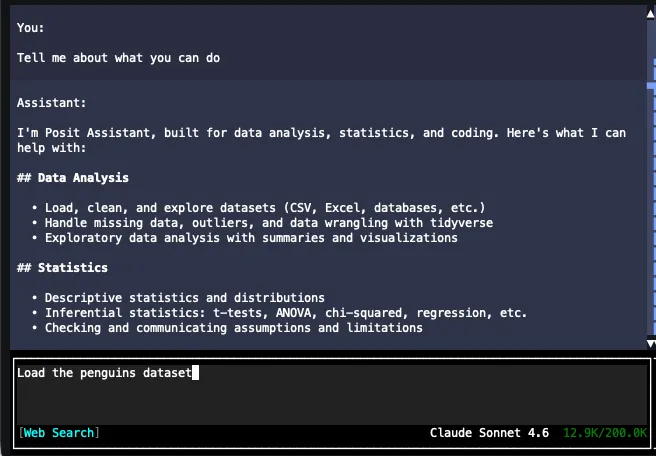
Interactive Mode
Run pa with no prompt to start an interactive session:
paThe interactive TUI provides a full chat experience in your terminal — markdown rendering, syntax-highlighted code blocks, tool confirmation dialogs, and inline images.
Flags
| Flag | Description |
|---|---|
-m <model> | Model to use, in provider/model-id format. |
--auto | Enable Auto mode. |
--yolo | Skip tool confirmations (enable YOLO mode). |
-v | Enable debug logging. |
-vv | Enable trace logging. |
-h, --help | Show help. |
Examples
pa -m positai/claude-sonnet-4-6
pa --auto
pa --yolo
Images in the Terminal
When the assistant generates plots or works with images, the TUI renders them directly in your terminal. It automatically detects your terminal’s graphics capabilities and picks the best available protocol:
| Protocol | Terminals |
|---|---|
| Kitty | Kitty, Ghostty, and terminals supporting the Kitty graphics protocol |
| Sixel | iTerm2, xterm (with sixel enabled), mlterm, foot, and others |
| ANSI art | Any terminal (fallback — renders images as colored block characters) |
If none of the graphics protocols are supported, images are rendered using a lower-quality ANSI art fallback using block characters.
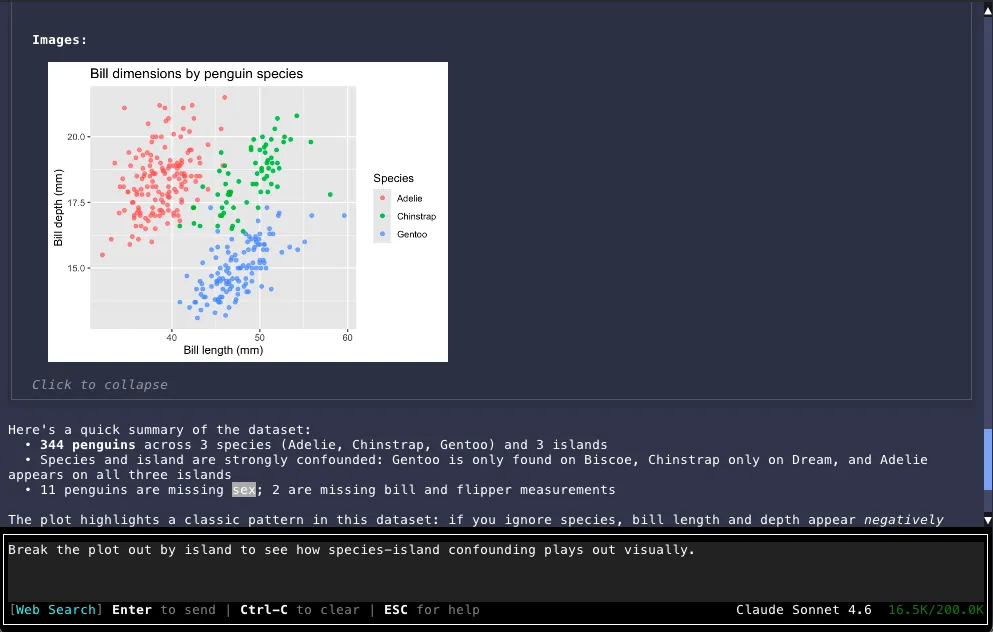
You can Click or press Space on an image while focused to expand it in a full-screen viewer. Click or press Space again to close.
If you’re running pa in the Positron or VS Code integrated terminal, enable image support
with these settings: "terminal.integrated.enableImages": true and
"terminal.integrated.gpuAcceleration": "on".
Headless Mode
Pass a prompt as an argument to run in headless mode. The assistant processes the prompt, streams the response to stdout, and exits.
pa "What is the capital of France?"Headless mode is designed for scripting and automation. The conversation ID is printed to stderr for reference.
Flags
All interactive flags are available, plus:
| Flag | Description |
|---|---|
--id <id> | Conversation ID for resuming a previous conversation. |
Examples
# Simple question
pa "Summarize the data in sales.csv"

# Use a specific model
pa -m positai/claude-sonnet-4-6 "Explain this error"

# Classifier-based approval
pa --auto "Run the project tests and summarize any failures; do not publish or push."

# Resume a conversation
pa --id abc123 "Now filter to Q4 only"

# Pipe input
echo "Fix this code" | pa
Behavior
- Tool calls are auto-approved for safe operations; dangerous commands are denied (no interactive prompt in headless mode).
- With
--auto, a classifier reviews eligible tool calls. If it blocks a call or the review fails, that call is declined. See Auto Mode for details. - Use
--yoloto auto-approve most tool calls, including ones the assistant flagged as dangerous. Deny rules remain enforced. Calls requiring a person’s confirmation and requests to run outside the sandbox are still denied. - Exit code is
0on success,1on error. - Logs are written to
~/.posit/assistant/logs/headless.log(or~/.positai/logs/headless.login older versions) (only when-vor-vvis specified). --ends option parsing, so the argument after it is always the prompt, even one starting with-:pa -- "-1 is negative". Only one prompt argument may follow--.