Positron

ℹ️ Posit Assistant vs. Positron Assistant

This page (and website) documents Posit Assistant, which is distinct from Positron Assistant. Posit Assistant is an evolution of Positron Assistant and is intended as its replacement, although Positron Assistant is still currently available.

Posit Assistant comes pre-installed in recent versions of Positron.

1. Configure a Model Provider

Posit Assistant is enabled by default on Positron 2026.07 and later. If it has been turned off, set assistant.enabled to true in your settings.json (Cmd+Shift+P / Ctrl+Shift+P, then Open User Settings (JSON)). If your administrator has locked this setting via policy, contact them to change it.

On older Positron versions (< 2026.07), Posit Assistant is opt-in: set positron.assistant.enable to true in your settings to enable it.
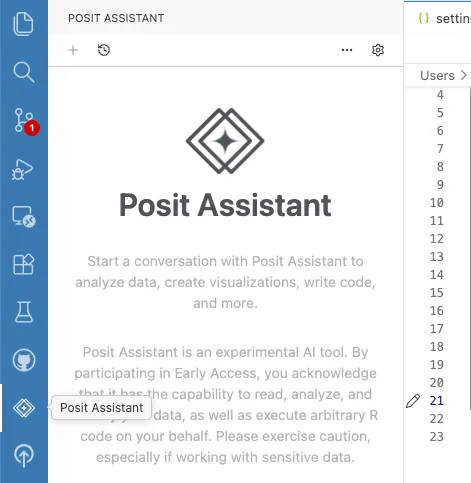
Posit Assistant sidebar view in Positron

You need at least one model provider to use Posit Assistant. Positron supports many providers — choose the one that fits your setup.

Posit AI

Posit AI is a managed service from Posit that gives you access to frontier LLMs through a single account. It’s the easiest way to get started. See the Posit AI documentation for account setup and available models.

Supported Providers

Positron supports the following providers. Each requires its own credentials, configured through the provider dialog described under Signing In.

ProviderAuthentication
Posit AISign in (OAuth)
AnthropicAPI key
OpenAIAPI key
Amazon BedrockAWS CLI or Posit Workbench managed credentials
Snowflake CortexAPI key or Posit Workbench managed credentials
GitHub Copilot (Preview)GitHub account (OAuth)
Microsoft Foundry (Preview)API key or Posit Workbench managed credentials
Google Vertex AI (Experimental)Google Cloud CLI or service account credentials
Custom provider (Experimental)API key and base URL

Signing In

Open the provider configuration dialog to sign in or enter your credentials:

  • Open the Command Palette (Cmd+Shift+P / Ctrl+Shift+P) and run Configure Language Model Providers, or
  • Click the gear icon in the top bar and select Setup Instructions.
Positron Assistant provider configuration modal

On older versions of Positron, you may need to manually enable LLM providers. To enable additional providers, open your settings.json (Cmd+Shift+P / Ctrl+Shift+P → Open User Settings (JSON)) and add the appropriate setting:

// Posit AI (managed service — sign in via the provider dialog)
"positron.assistant.provider.positAI.enable": true,

// Amazon Bedrock (uses AWS CLI credentials)
"positron.assistant.provider.amazonBedrock.enable": true,

// OpenAI (requires API key)
"positron.assistant.provider.openAI.enable": true,

// Snowflake Cortex
"positron.assistant.provider.snowflakeCortex.enable": true,

2. Start a Conversation

Click the Posit Assistant icon in the activity bar (or run Open Posit Assistant in Editor Panel from the Command Palette), type a question, and press Enter.

Further Configuration

See Positron Settings for model routing, experimental features, and other Positron-specific options.

Known Issues

GitHub Copilot Premium Request Usage

When using GitHub Copilot models through Posit Assistant, each tool call and follow-up request made during a conversation counts as a separate premium request against your Copilot quota. This means a single user message may consume multiple premium requests if the assistant uses tools to complete the task.

This is a limitation of the VS Code Language Model API that Posit Assistant uses to access Copilot models. The API does not currently distinguish between an initial user request and the follow-up calls needed to fulfill it. To reduce consumption, you can use models from other providers (such as Anthropic or OpenAI) configured with direct API access, which do not have this limitation.