Terminal (TUI)
The pa terminal application runs Posit Assistant in your terminal — interactive or headless for scripting and automation.
Quick Install
On macOS or Linux, install with a single command:
curl -fsSL https://assistant.posit.co/builds/install-tui.sh | bashThe script detects your OS and architecture, downloads the appropriate binary, and installs it. Customize the install location with the INSTALL_DIR environment variable.
After installation, run:
paManual Downloads
Download the binary for your platform and extract it:
| Platform | Architecture | Download |
|---|---|---|
| macOS | ARM64 (Apple Silicon) | pa-macos-arm64.gz |
| Linux | x64 | pa-linux-x64.gz |
| Linux | ARM64 | pa-linux-arm64.gz |
| Windows | x64 | pa-windows-x64.zip |
On macOS or Linux, install manually with:
gunzip pa-*.gz
chmod +x pa-*
sudo mv pa-* /usr/local/bin/pa
On Windows, extract pa-windows-x64.zip and run executable inside it.
Model Provider
The TUI uses Posit AI as its default provider. Run pa and follow the sign-in prompt to authenticate with your Posit AI account.
To use a different provider, see the Providers page for the full list and setup instructions. Configure credentials in the config file (~/.posit/assistant/settings.json) or via environment variables.
For Databricks, the TUI supports service-principal OAuth and personal access tokens. Browser OAuth is disabled because a terminal session cannot guarantee that the browser can reach its local callback. See Databricks for setup.
Further Configuration
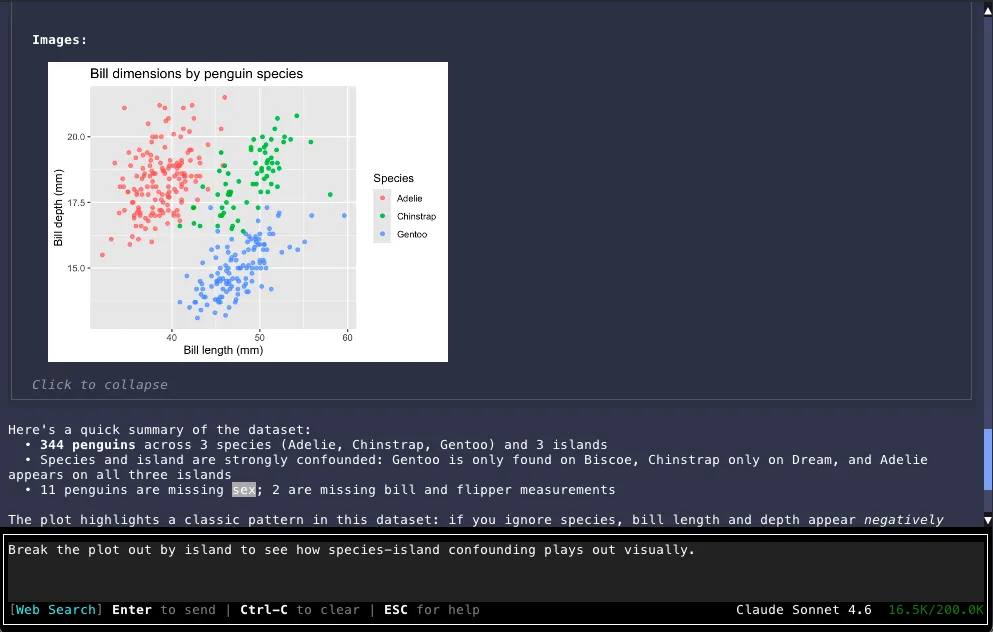
See TUI Usage for interactive mode flags, headless mode, image rendering, and other terminal-specific options.