Permissions & Trust
Posit Assistant asks for confirmation before performing potentially risky actions like editing files or running shell commands. You can customize this behavior with approval modes, per-tool permissions, and workspace trust.
Approval Modes
Four modes control how tool confirmations behave:
| Mode | Behavior | Activate with |
|---|---|---|
| Normal | Default. Safe operations run automatically; risky actions prompt for confirmation. | Default behavior |
| Auto | A classifier model reviews risky tool calls and allows or blocks them. | /auto command or --auto CLI flag |
| YOLO | Auto-approve all tool calls except explicitly dangerous operations. | /yolo command |
| Restricted | Require confirmation for everything. Applied automatically to untrusted workspaces. | /restricted command, or open an untrusted workspace |
Toggle between modes with the /auto, /yolo, and /restricted slash commands.
Auto Mode
Auto mode sits between normal and YOLO — instead of asking you to confirm every risky tool call, it sends each one to a classifier model that decides whether the action is safe. If the classifier approves, the tool runs without interruption. If it blocks, the tool call is declined and the assistant is told why.
The classifier allows actions that stay within the working directory: reading and editing files, running tests and builds, committing to the current branch, and making read-only HTTP requests. It blocks actions like piping remote scripts to an interpreter, sending credentials to external endpoints, force-pushing, or modifying production infrastructure. Constraints you state in the conversation (e.g., “don’t push”) are treated as additional block signals.
If the classifier blocks three consecutive tool calls, auto mode pauses and drops back to normal approval mode. Approving the next prompted action resumes it. If the classifier is unavailable or times out, auto mode falls back to the normal confirmation dialog. In headless mode (--auto with a prompt), classifier failures and repeated blocks abort the session instead of prompting.
Approval Scopes
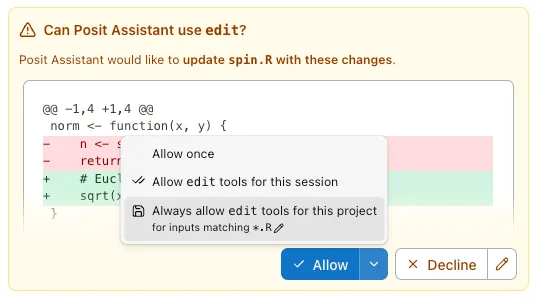
When the assistant asks for confirmation, you can approve at different scopes:
- Once — Approve this single action.
- For this session — Allow this type of action for the rest of the session.
- For this project — Allow this type of action permanently for this project (saved to
.posit/assistant/settings.json).
Per-Tool Permissions
Configure permissions in your settings file using the permission key:
{
	"permission": {
		"bash": {
			"git *": "allow",
			"rm *": "deny"
		},
		"read": "allow",
		"edit": "ask"
	}
}
Each tool can be set to "allow", "ask", or "deny". For tools like bash, you can use pattern matching to set different permissions for different commands.
Subagent permissions use the task key and match the requested subtype. For example, to deny
read-only exploration subagents while continuing to prompt for general-purpose subagents:
{
	"permission": {
		"task": {
			"explore": "deny",
			"general": "ask"
		}
	}
}
The former permission.explore key is no longer supported. Move its "allow", "ask", or
"deny" value to permission.task.explore.
Built-in Defaults
Some security defaults are always enforced:
.envfiles and.Renvironare blocked from reading (prevents accidental secret exposure)- Plan files (
.posit/assistant/plans/*) are always readable; writing one prompts for confirmation denyrules are always enforced, even in auto and YOLO modes
Workspace Trust
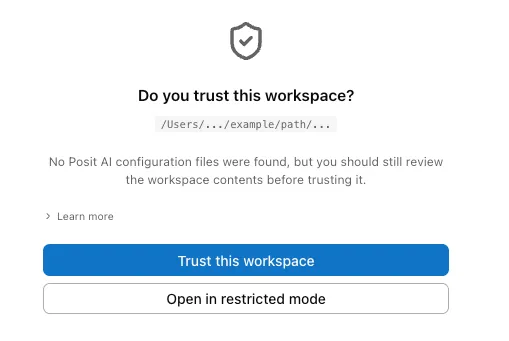
When you open a project for the first time, Posit Assistant checks for files that could influence its behavior:
AGENTS.md— Memory file.posit/assistant/settings.json— Project-level settings
If any of these exist, you’ll be asked to trust the workspace or open in restricted mode. This prevents untrusted projects from injecting prompts or auto-approving dangerous operations.
Trusting a Workspace
- Click Trust this workspace when prompted, or use the
/trustcommand. - Trust is persistent — once trusted, the workspace stays trusted across sessions.
- In restricted mode, memory files are not loaded and certain tools (like subagent spawning) are blocked.
Sandbox Mode
Sandbox mode constrains how the shell tools (Bash and PowerShell) run. How it does so depends on your platform, and the two approaches differ in kind: macOS and Linux confine what a command can do, while Windows limits which commands may run at all.
On macOS and Linux, commands run inside an OS-level sandbox. macOS uses Seatbelt (SBPL) to deny by default: writes are allowed only to the workspace and $TMPDIR, all network access is blocked, and sensitive paths (~/.ssh, ~/.gnupg, ~/.aws, etc.) can’t be read. Linux uses bubblewrap to the same end. Any command may run, but commands are isolated at the OS level.
On Windows, no OS-level sandbox is available, so the safeguard is different: rather than confining a command, sandbox mode restricts which commands are allowed to run. A command executes only if every part of it is on a built-in allowlist of known-safe, read-only commands; anything else is refused with Operation not permitted. There is no filesystem or network isolation — an allowlisted command runs with full access to your machine.
In Sandbox mode, other tools (including web fetch, web search, and R/Python code execution) work as normal.
Toggle sandbox mode with the /sandbox command, or persist it via sandbox.enabled in your config file.
Permission Resolution Order
When multiple sources define permissions, they’re resolved in this order (highest priority first):
- Conversation-scoped approvals (from “Allow for conversation”)
- Project-scoped approvals (from “Allow for project”)
- Project config (
.posit/assistant/settings.json) - Global config (
~/.posit/assistant/settings.json) - Built-in security defaults
- Tool’s default permission
- Fallback:
"ask"
In older versions, the configuration directories were .positai/ and ~/.positai/ instead of .posit/assistant/ and ~/.posit/assistant/.