Positron
This page (and website) documents Posit Assistant, which is distinct from Positron Assistant. Posit Assistant is an evolution of Positron Assistant and replaces Positron Assistant as of Positron 2026.07.
1. Download Positron
Download and install the current version of Positron. Posit Assistant comes pre-installed in recent versions of Positron.
2. Ensure Posit Assistant is Enabled
Positron enables Posit Assistant by default in 2026.07 and later.
If you previously turned off Posit Assistant, turn it on again by following these steps:
- Open the Command Palette (
Cmd+Shift+PorCtrl+Shift+P) and run Preferences: Open User Settings (JSON) to open yoursettings.jsonfile. - Set
assistant.enabledtotrue.
If your administrator locked this setting with a policy, contact your administrator to change it.
On Positron versions older than 2026.07, Posit Assistant is opt-in. To enable it, set both assistant.enabled and positron.assistant.enable to true in your settings.
3. Connect a Model Provider
You need at least one model provider to use Posit Assistant.
If Positron does not trust your workspace yet, Posit Assistant asks if you trust it. Click Trust this workspace.
Then, connect a provider:
- In the Posit Assistant sidebar, click Help me set it up.
- In the Set up an AI provider dialog, click Configure AI providers.
- Click Connect next to your provider and follow the steps to sign in or provide your credentials.
- Close the provider dialog.
- When the Set up an AI provider dialog shows Posit Assistant is ready!, click Got it.
To change providers later, click the gear icon in the Posit Assistant sidebar, then click Configure AI providers. You can also run Posit Assistant: Configure AI Providers from the Command Palette.
Posit AI Pass
Posit AI Pass is a managed service from Posit that provides access to frontier LLMs. It is the easiest way to get started.
For information on how to create or manage your account, or for details on available models and usage, see the Posit AI Pass documentation.
To connect Posit AI Pass, follow the steps above and choose Posit AI Pass in the provider dialog. Then sign in with your Posit account.
Additional Providers
Positron supports many model providers beyond Posit AI Pass. See the Providers page for the full list and setup instructions. For details on the Positron provider dialog, see Get Started and AI Providers in the Positron documentation.
4. Start a Conversation
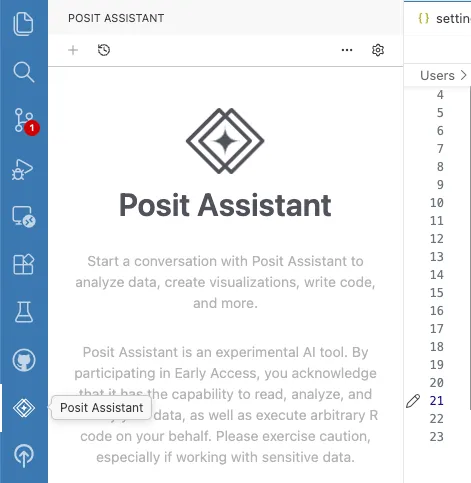
Click the Posit Assistant icon in the activity bar (or run Open Posit Assistant in Editor Panel from the Command Palette). Type a question. Then press Enter.
For example prompts, see Your First Conversation.
Conversation tabs in the sidebar are shown by default (features.conversationTabs setting: "off", "top", or "side"; default "top"). Assistant editor panels do not show conversation tabs.
Instead, each conversation opens in its own Positron editor tab, which you can split, move, and pin.
Closing a tab does not delete its saved conversation or stop background work.
Next Steps
- To customize Posit Assistant, see Configuration.
- For model routing, experimental features, and other Positron-specific options, see Positron Settings.
- For common tasks, see Guides.