RStudio
Posit Assistant is available the current release of RStudio. It includes a conversational chat interface and Next-Edit Suggestions for inline code completions.
1. Download RStudio
Download and install the current version of RStudio.
2. Show the Sidebar
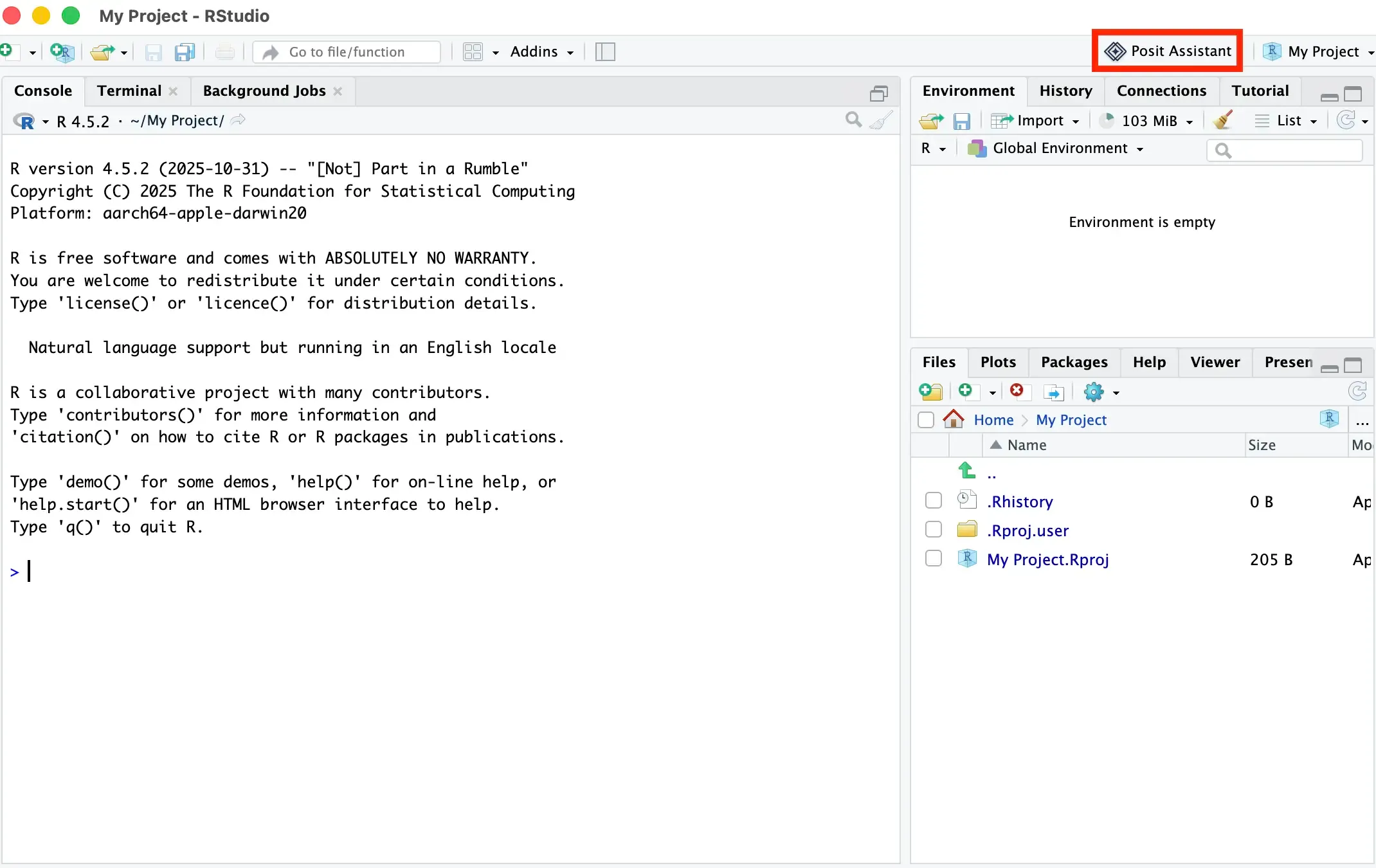
Open RStudio and show the sidebar using the toolbar icon in the top right of the IDE.
3. Install Posit Assistant
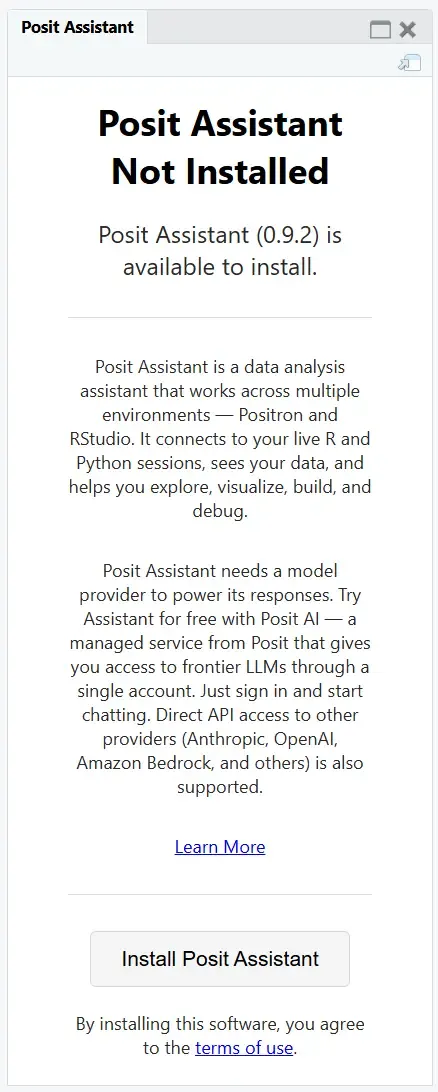
The pane asks you to install Posit Assistant. Click the button to do so.
4. Connect an AI Provider
After the installation completes, a prompt may ask you to verify that you trust the workspace. Once verified, you will see Posit Assistant and a Configure provider button.
Click Configure provider to open the list of AI providers, then connect the one you want to use.
Posit AI Pass, a managed service from Posit that provides access to frontier LLMs, is at the top of the list. Its Learn more link opens posit.ai, and the Posit AI Pass documentation covers available models and usage. To use it, click Connect on its row. This opens your browser to authorize access via your Posit account. Once authorization is complete, click Go to chat if the success dialog remains open (it closes automatically when Posit AI Pass is the only available provider).
For any other provider, see Additional Providers below.
Additional Providers
RStudio supports many model providers beyond Posit AI Pass. See the Providers page for the full list and setup instructions.
Databricks supports personal access tokens and service-principal OAuth in both RStudio Desktop and Server. Browser OAuth remains disabled pending approval of the supported Databricks client, redirect URI, and scopes. See Databricks for setup.
5. Enable Next-Edit Suggestions
Next-Edit Suggestions are disabled by default. To enable them:
- Go to Tools > Global Options > Assistant
- Select Posit AI Pass Next Edit Suggestions from the “Use code assistant” dropdown
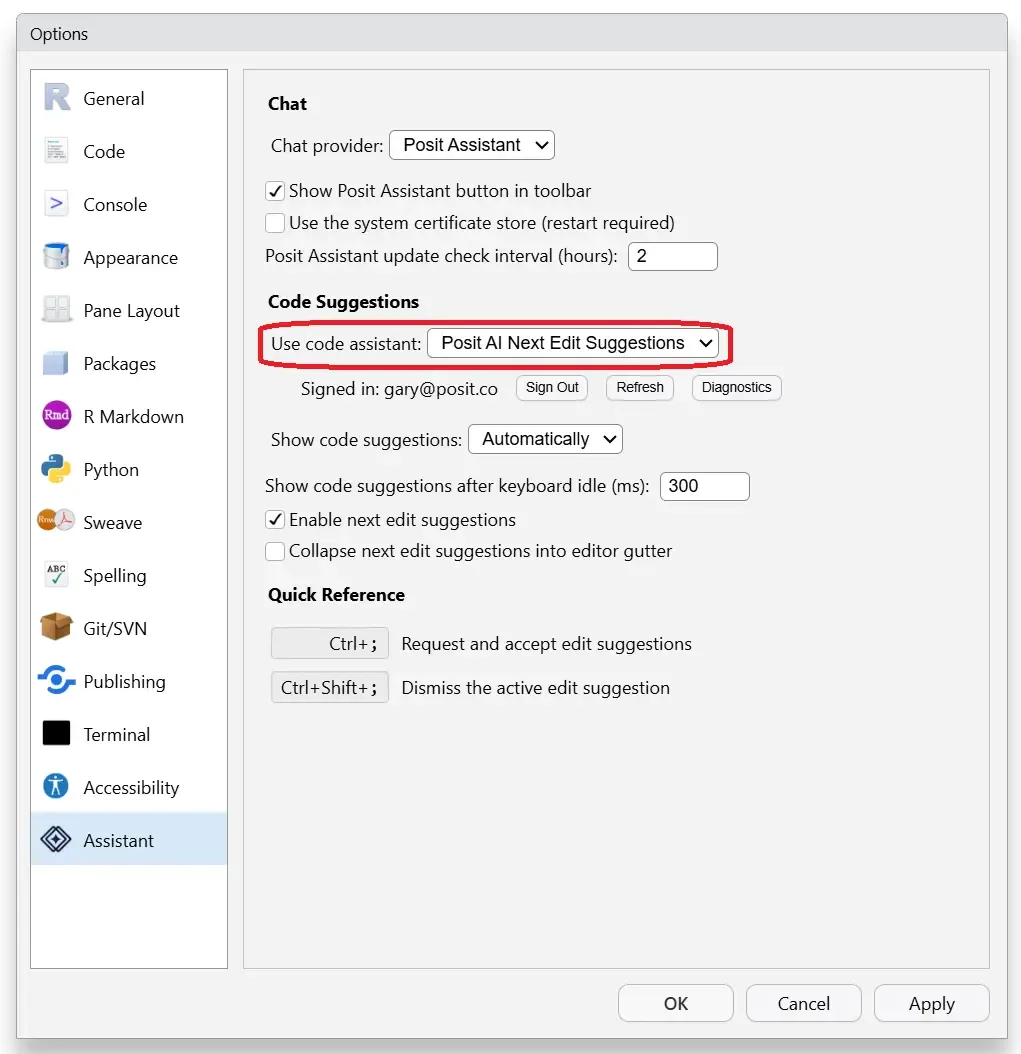
You may need to restart RStudio after enabling this feature.
Troubleshooting
- Chat not responding? Check your sign-in status via the gear icon > Configure AI providers. Try restarting RStudio.
- Need to start fresh? Delete Posit Assistant binaries at
~/.local/share/rstudio/pai/(macOS/Linux) or%LOCALAPPDATA%\RStudio\pai\(Windows). Delete conversations and auth at~/.posit/assistant(or~/.positaiin older versions) on macOS/Linux, or%USERPROFILE%\.posit\assistant\(or%USERPROFILE%\.positai\) on Windows.