Debug & Fix Code
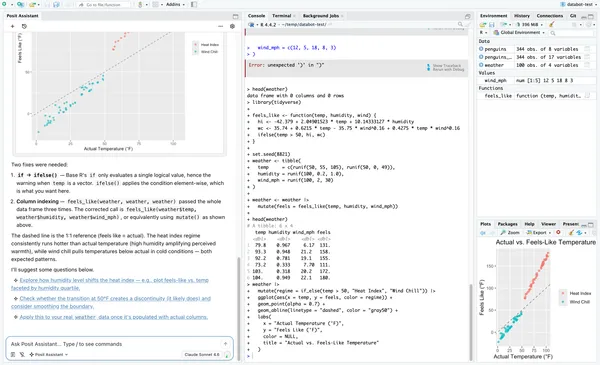
Posit Assistant can help you find and fix errors in your R or Python code. Posit Assistant reads your code and your session, so it can find bugs that a general coding assistant does not see.
It can help with problems such as:
- Vectorization bugs: In R,
ifandifelse()are easy to confuse. Posit Assistant finds this error, explains it, and rewrites the code. - Type mismatches: Your code uses a character column where a numeric column is necessary. Posit Assistant finds the source and suggests a conversion.
- Index errors: These include off-by-one errors, incorrect column references, and subsetting mistakes.
- Package conflicts: Two packages export a function with the same name. Posit Assistant finds the conflict and suggests a namespace.
This guide walks you through using Posit Assistant to debug your code. By the end of this guide, you will have:
- A diagnosis that explains what went wrong
- Code that runs correctly
- Patterns that help you prevent the same type of bug
Prerequisites
- Posit Assistant installed with a model provider connected
- Your project open in Positron or RStudio, so that Posit Assistant can use your session context
In Positron and RStudio, Posit Assistant receives context from your session:
- Your variables: It sees the names and types of the objects in your session.
- Your open files: It knows which file you have open and which lines you selected. It can read the file to see the selected code.
- Your session: It can run code in your session to examine your data and the packages that you loaded.
Guide
Step 1. Reproduce the Error
Run the code that fails in your session, or ask Posit Assistant to run it for you. Then Posit Assistant can see the error and the objects in your session.
Step 2. Share the Problem
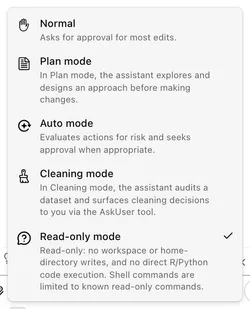
If you want only an explanation, with no changes to your files, type /readonly first, or select Read-only mode from the mode picker. In Read-only mode, Posit Assistant does not edit files or directly run R/Python code.
Next, share the problem in one or more of these ways:
- Paste the error message
- Select the code that does not work
- Ask a question, for example: Why isn’t this working?
You do not need to paste the full script. Posit Assistant can see which file you have open.
Step 3. Read the Diagnosis
Posit Assistant explains what went wrong. It refers to your data and your variables, and it usually suggests a fix.
Before you apply a fix, make sure that you understand the cause:
- To learn the root cause, and not only the symptom, ask Why?
- If the explanation is not clear, ask for more detail. For example: Explain this step by step.
- If the diagnosis does not agree with your data, tell Posit Assistant what is different. For example: The
deptcolumn is a factor, not a character vector.
Step 4. Apply the Fix
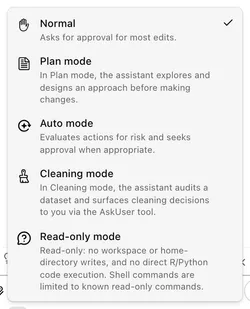
If you are in Read-only mode, type /normal or select Normal from the mode picker before you apply the fix.
Review the fix that Posit Assistant suggests. Posit Assistant can edit the file and run the corrected code. Depending on your permission settings, it asks you before it makes each change.
Step 5. Make Sure That the Fix Works
Run the code again, and examine the output. If the error persists, go back to Step 2 and share the new output.
Step 6. Prevent the Problem
For problems that could occur again, ask for defensive patterns:
How can I prevent this type of bug in the future?
Next Steps
- For more about the context that Posit Assistant receives, see Context Management.
- For more about tool approvals, see Permissions.