Commands
Type a slash command at the start of your message to trigger special actions. The commands below are built in.
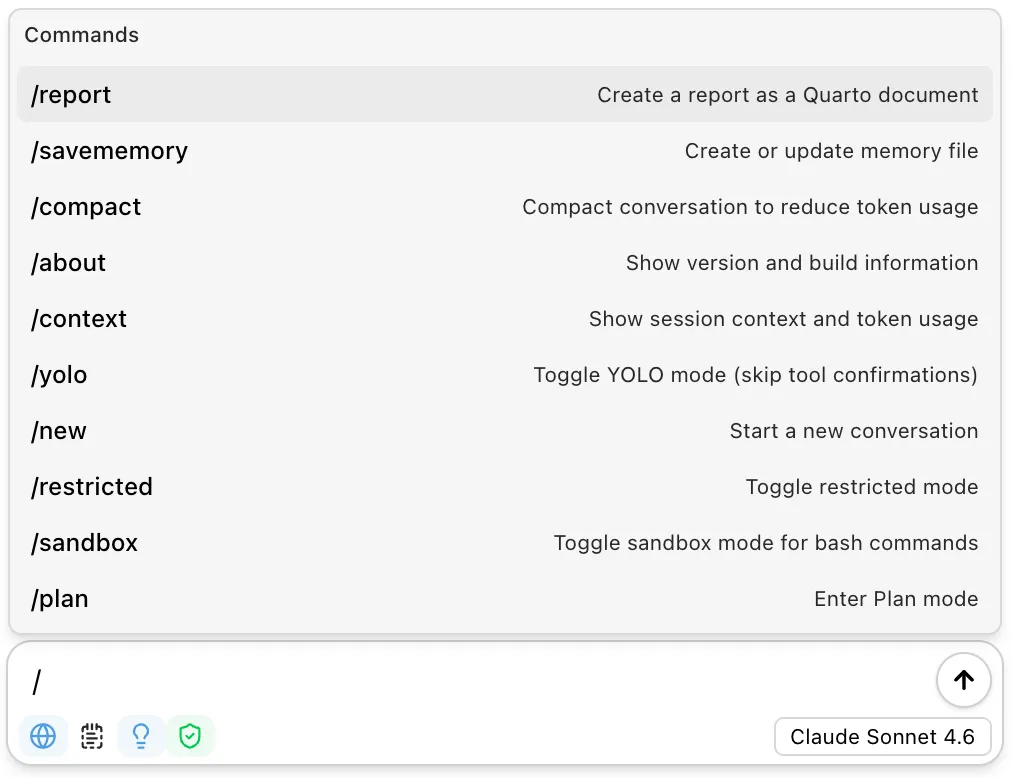
In addition, most skills can be run as /skill-name, so your own skills appear in the same menu. See the notes below for the exceptions.
Command Reference
| Command | Description |
|---|---|
/report | Create a Quarto document from the current conversation. Optionally add instructions after the command. |
/notebook | Export the conversation as a Jupyter notebook. |
/savememory | Create or update the project memory file. Add instructions to guide what gets saved. Use /savememory user to target the user-level memory file (~/.posit/assistant/AGENTS.md). |
/compact | Summarize the conversation to reduce token usage with Assistant’s built-in agent. Unavailable with agent engines. Previous messages are hidden but preserved. |
/microcompact | Replace eligible tool results in Assistant’s history with placeholders; does not compact an engine’s live session context. |
/plan | Enter Plan mode to design an implementation approach before making changes. |
/readonly | Enter Read-only mode for read-only exploration and questions — no file changes or direct R/Python code execution. |
/new | Start a new conversation with the current model, thinking effort, and web search settings, unless a fixed defaultModel is set. |
/clear | Start a new conversation with the current model, thinking effort, and web search settings, even if a fixed defaultModel is set. |
/context | Show session context and token usage for the current conversation. |
/plugin | Open the plugin & marketplace manager to browse, install, update, and enable plugins. Also available as /marketplace. |
/mcp | Open the session panel, which lists your MCP servers and their status, and lets you sign in to any that need authentication. |
/settings-report | Show which layer decided each setting and where each provider’s credentials come from. Secrets are never shown. See Checking what applies. |
/about | Show version and build information. |
/trust | Mark the current workspace as trusted. Required for loading project-level memory files, skills, and settings. |
/auto | Toggle Auto mode and Normal; trusted workspace and administrator permission required. |
/restricted | Toggle restricted mode in a trusted workspace. When enabled, tool calls you haven’t explicitly allowed in your settings require confirmation. Untrusted workspaces are always restricted. |
/sandbox | Toggle sandbox mode for shell commands. Uses OS-level isolation on macOS/Linux; on Windows, gates active-shell commands with a built-in allowlist. |
/yolo | Toggle automatic tool confirmation. When enabled, the assistant runs tools without asking. |
Usage
Commands can be used on their own or with additional instructions:
/report/report Focus on the visualization section and include the final plot code/savememory Remember that this project uses tidymodels for all modeling workNotes
- Slash commands are different from the
!prefix, which runs shell commands and code from the chat input without a model turn. See Chat Features. /reportand/notebookuse thereportskill to generate documents./compactuses a low-tier model to summarize, so it completes quickly. The original messages are preserved — compaction just hides them from future requests./microcompactruns locally and does not send a message to the model. It is unavailable while the assistant is streaming.- Agent engines manage their own context and compaction; Assistant’s auto-compaction settings do not apply to them.
- Most skills can be run as a slash command (
/skill-name), including your own custom skills. Skills markeduser-invocable: falseare hidden from the menu, project skills need a trusted workspace, and if a skill’s name matches a built-in command, the built-in command takes precedence. See Skills for how invoking a skill differs from letting the assistant load it automatically.