Context Management
Posit Assistant works within a finite context window — the amount of text the model can consider at once. Understanding how context is managed helps you get better results in long conversations.
Session Context
When connected to an R or Python session, Posit Assistant automatically includes session information in its context: the language, version, and names and types of variables in your environment (not their values).
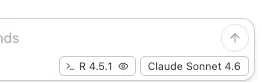
In Positron, you can toggle session context on or off using the eye icon in the status bar. Disabling it removes session information from the assistant’s context, which can be useful if you want generic answers uninfluenced by your current environment.
Token Counter
The token counter in the status bar shows how much of the model’s context window is in use.
For agent engines, the counter depends on what the engine reports. If usage or the context limit is not reported, Assistant shows it as unknown rather than estimating it from a provider model.
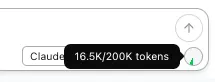
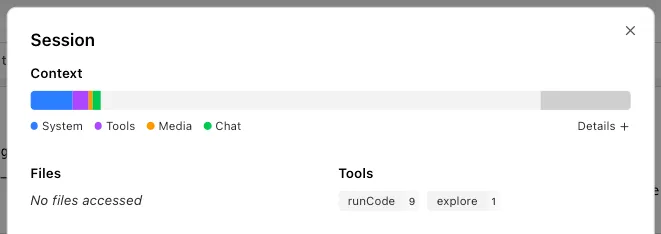
Click it to open the Session HUD with a detailed breakdown of token usage by turn, including system prompt, messages, and tool results.
Compaction
Long conversations accumulate tokens. With Assistant’s built-in agent, when the conversation approaches the model’s context limit, Posit Assistant compacts it to free up space by summarizing earlier messages.
Agent engines manage their own context and compaction. Assistant’s auto-compaction settings do not control them, and /compact is unavailable in engine conversations.
Auto-Compaction
When token usage reaches a threshold, compaction triggers automatically. The assistant generates a summary of the conversation so far and hides earlier messages from future requests.
The autoCompactTokenBuffer setting (default: 30,000 tokens) reserves space for the compaction summary. Auto-compaction triggers once fewer than autoCompactTokenBuffer tokens remain in the context window.
Compacted messages are never deleted — they’re preserved in the conversation tree and remain visible in the chat history. They’re just excluded from what the model sees.
Manual Compaction
You can also trigger compaction yourself with the /compact command. This uses the same mechanism as auto-compaction — useful if you want to free up context space proactively.
Micro-Compaction
Separately from compaction, micro-compaction can trim tool results without generating a full conversation summary. Trigger it with the /microcompact command when tool output is taking too much of the context window.
- Most tool results in the active conversation path are replaced with a short placeholder.
- Tool calls remain in the prompt so the model can still see what was run.
- Selected tools preserve text output and compact only media attachments (images, files).
- Provider-executed tool results, such as hosted web search results, are kept as-is.
- The command runs locally and does not send a message to the model.
Micro-compaction is explicit. It does not run automatically and has no token-threshold settings.
/microcompact changes the eligible tool results in Assistant’s conversation history, not an engine’s live session context. It is not a way to compact an engine session.
Configuration
Only full conversation compaction has a configuration setting:
| Setting | Default | Description |
|---|---|---|
features.autoCompactTokenBuffer | 30000 | Tokens from the context limit at which auto-compaction triggers. |
Set it in the config file under the features block:
{
	"features": {
		"autoCompactTokenBuffer": 30000
	}
}