Auto Mode
Auto mode uses a classifier model to approve or reject proposed actions that would otherwise require manual confirmation. You may still need to review some requests.
Auto mode is the default in Posit Assistant because it is likely safer than manual review. Repeated requests to approve commands can lead to approval fatigue, making human reviewers less likely to read each command closely. In Anthropic’s controlled study of 1,053 testers, Claude Code’s Auto mode identified and blocked around 6.5 times as many harmful commands as human reviewers.
However, Auto mode is not a guarantee against destructive or unapproved actions. If there are actions that you do not under any circumstances want Posit Assistant to take, you or your administrator should block those actions in your settings.json or through other controls. See Permissions & Trust for more details.
Models and costs
The classifier model is typically a different, simpler model from the one you chat with. The table below shows the default classifier pairings for common chat models. See Classifier selection for how Posit Assistant chooses the classifier and handles unavailable models.
Our conversation-cost evaluations suggest that Auto mode’s added cost is roughly one sixth of the ratio of the classifier’s input-token price to the main model’s input-token price. The table uses this relationship to estimate the increase for each model pair.1
| Main agent | Classifier | Estimated added cost |
|---|---|---|
| Claude Sonnet 5.5 | Claude Haiku 5.5 | 0.83% |
| Claude Opus 5.5 | Claude Haiku 5.5 | 0.42% |
| GPT 6.1 Sol | GPT 6.1 Terra | 8.33% |
| Gemini 4 Argon | Gemini 3.8 Flash | 6.25% |
To select classifier models, we look for the lowest-cost models that perform well in our safety evaluations. For details on our evaluations and model choice, see the announcement about making Auto mode the default.
Enable Auto mode
Auto mode is the default approval mode for interactive sessions in trusted workspaces, unless you have a saved preference or your administrator has configured a different default. Untrusted workspaces start in Restricted mode.
In Normal mode, Posit Assistant asks for human approval before many actions. See Permissions & Trust for all approval modes.
Select Auto mode in the mode picker to turn it on, or Normal to turn it off. The /auto slash command toggles between Auto and Normal.
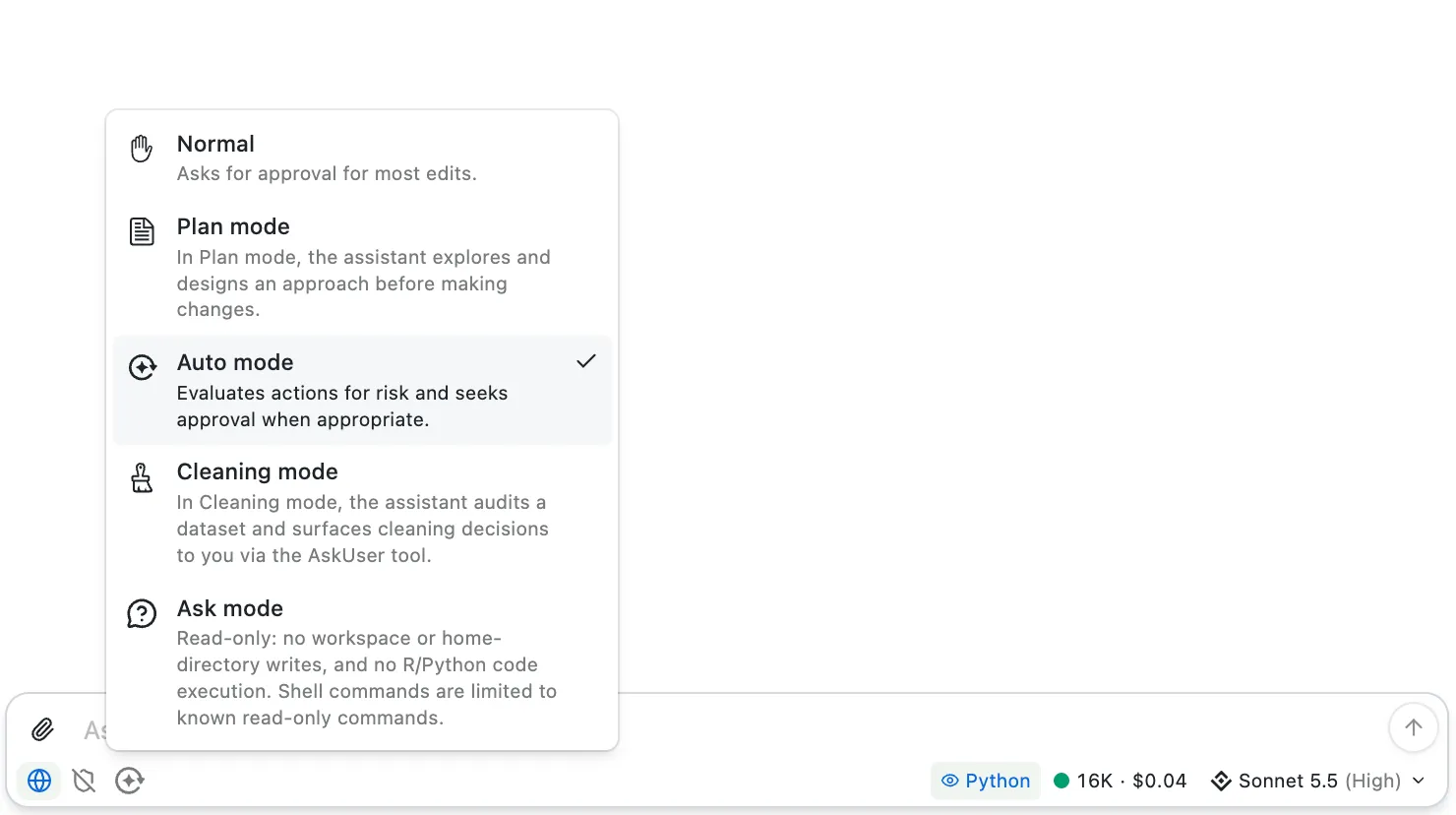
You can switch between Auto and Normal during a conversation. Your choice is saved across conversations and projects (subject to administrator limits, which may prevent you from selecting Auto).
What Auto mode reviews
In Auto mode, the classifier model reviews tool calls that would otherwise require user confirmation, including running R or Python code, executing shell commands, or editing files. It does not review every action the assistant takes. Permission rules and hooks are still applied first, and the classifier cannot override a denied action.
Because the classifier reviews proposed actions rather than carrying out your request, Posit Assistant gives it a limited set of information: workspace boundaries, a shortened conversation history, the proposed action, and a set of safety rules. The shortened conversation history contains user text, tool names and inputs, some assistant proposal context, and answered clarification questions.
Other information, including reasoning traces, the main Posit Assistant system prompt, and memory-file contents, is not included.
Importantly, the only tool results the classifier sees are those from the AskUser tool, which contain your answers to clarification questions. Excluding other tool results helps protect against prompt injection: malicious instructions in tool output that try to redirect the assistant.
The classifier then uses the information provided to judge the request by the safety rules, either approving or rejecting it. Among other considerations, the classifier weighs whether the action fits your request, how easy it is to undo, whether it exposes sensitive data, and whether it will affect files outside your project.
Note that, because context is shortened before being sent to the classifier, it may omit instructions provided earlier in the conversation. The classifier may receive sensitive information included in proposed commands, code, or file edits. This information is not automatically redacted.
The classifier’s system prompt includes instructions to:
-
Allow routine work related to your request, such as editing project files, installing dependencies, running tests, and making local Git commits.
-
Require user authorization for consequential actions, such as deleting work that is not under version control, publishing packages, deploying to production, force-pushing, or pushing to the default branch.
-
Block certain actions even if the user requests them, such as running downloaded code without inspection, sending secrets to external endpoints, or weakening Posit Assistant’s own security controls.
-
Respect user-stated boundaries, such as “don’t push to GitHub” or “never change files in data/.”
These rules govern actions the assistant proposes, including actions you explicitly ask it to perform. The classifier does not, however, review commands you run directly in the chat using the ! prefix.
Understand a decision
When Auto mode approves an action, it runs without asking you for confirmation. A shield with a check mark appears next to approved actions that completed successfully.

Hover over the shield to read the classifier’s reason. If an approved action later fails, the action shows the failure instead of the shield, and hovering over that icon still shows why Auto mode approved it.
When Auto mode blocks an action, it does not run. Expand the action to read the reason behind the block.
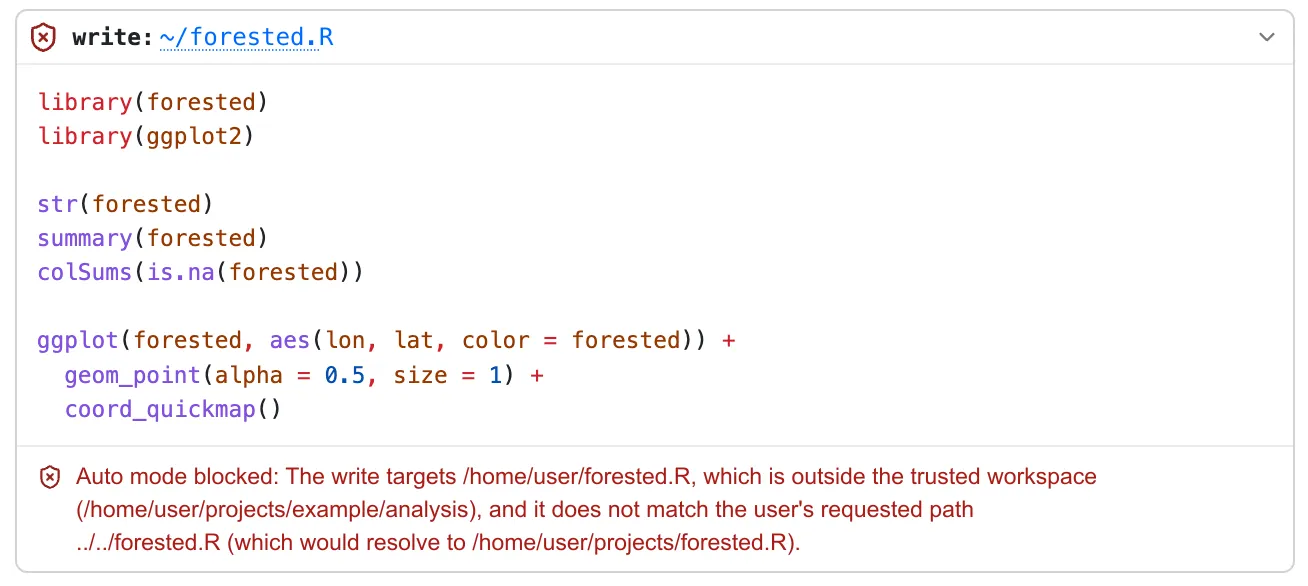
Posit Assistant receives that reason too and may ask you for clarification or continue with other work. A block does not automatically bring up a confirmation dialog or end the conversation.
If an action you want is blocked, read the reason and clarify what you want Posit Assistant to do. You can also switch to Normal mode to review future requests yourself.
When your approval is still needed
Auto mode still asks for your approval in these situations:
-
Your administrator enforces an
askrule, or a hook returnsask. The classifier never sees these. -
A search reads files that require read approval. Even if the classifier approves the search, Posit Assistant asks you separately about those files, and your approval applies only to that read.
-
The classifier times out, the model provider refuses the request, or the response is still invalid after one retry.
In an interactive session, three blocked requests in a row or twenty in total cause Posit Assistant to pause Auto mode and switch to Normal mode. If you approve the next action that needs confirmation, Auto mode resumes.
Classifier selection
By default, Posit Assistant selects the classifier model automatically from the same provider as the model you chat with. To choose it yourself, set classifierModels in your global settings file. The Models and costs table shows common pairings, but the exact choice will depend on which models your provider offers.
If the preferred classifier is unavailable, Posit Assistant chooses another suitable model from that provider. If no suitable separate model is available, it can use your chat model for classification too.
Terminal and headless mode
In an already-trusted workspace, pa --auto starts an interactive session in the terminal interface with Auto mode enabled, subject to administrator limits. Use /auto to toggle between Auto and Normal.
For headless mode, include --auto explicitly:
pa --auto "Run the project tests and summarize any failures. Do not publish or push."Without an approval-mode flag like --auto, headless runs use Normal mode unless administrator policy restricts them further.
In headless Auto mode, a classifier block or failure prevents that action from running, but does not necessarily end the run. Requests requiring a person’s approval are declined. Three blocked requests in a row or twenty in total cancel the run.
Administrator restrictions still apply. If your administrator does not permit Auto mode, a headless run with --auto will fail at startup. See the TUI reference for headless approval rules, workspace trust, and exit codes.
Footnotes
-
These rough estimates use standard input-token prices and the formula in the Auto mode announcement. Actual costs depend on token usage, caching, and pricing tiers. ↩