Chat Features
Beyond typing messages, Posit Assistant supports file attachments, adjustable reasoning depth, web search, and a command mode that runs shell commands and code directly from the chat.
The model picker also lists connected preview agent engines. Selecting one runs the conversation on that engine rather than Assistant’s built-in agent; available models, attachments, and controls depend on the engine.
File Attachments
There are several ways to include files in your messages:
Uploading Files
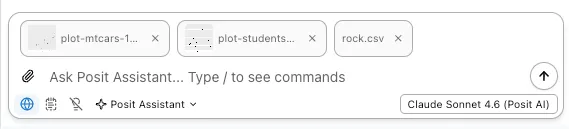
- Drag and drop — Drag files directly into the chat input area.
- Paste images — Paste images from your clipboard (Cmd+V / Ctrl+V).
- Paperclip button — Click the paperclip icon in the chat input to open a file picker.
Uploaded files appear as thumbnails in the input area.
Referencing Workspace Files
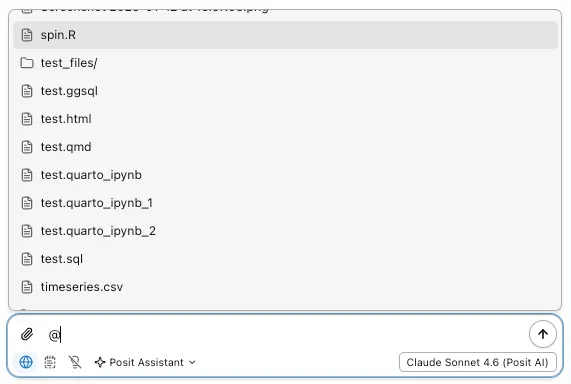
Type @ in the chat input to open the file mention menu. This lets you reference files and directories from your workspace without uploading them:
- Start typing a path to filter results (e.g.,
@src/utils) - Use arrow keys to navigate and Enter to select
- Directories appear with a folder icon and trailing slash
- Recently mentioned files are prioritized in the list
Referenced files are included as context in your message, so the assistant can read and work with them.
Supported File Types
The assistant handles different file types automatically:
- Images — Sent natively to models that support vision (PNG, JPG, GIF, WebP). The assistant can see and analyze the image directly.
- Documents — Sent natively to models that support document input (PDF, etc.).
- Text files — Decoded and injected as text into the conversation. Supported types include plain text, JSON, XML, and JSONL.
- Unsupported files — Rejected with an error message.
Limits
- Maximum file size: 20 MB
- Text injection limit: 200 KB. Larger text files are truncated with a notice.
Command Mode

Start a message with ! to run some code on your computer directly from the chat, without invoking the model. Submit the message and the result appears below your command.
Use this when you want the model to see the output of a specific command or bit of code, without having to ask the model to run it for you. The command and its output join the conversation, so the model sees them with your next message.
| What you type | What runs |
|---|---|
! echo hello | echo hello as a shell command |
!r 1 + 1 | 1 + 1 in R |
!python print(1) or !py print(1) | print(1) in Python |
Anything else after ! runs as a shell command, so !ruby -v runs the Ruby CLI.
While you type, the input switches to monospace and a label above it names what will run.
Commands run exactly as typed, without a confirmation prompt. Permission settings, which govern the assistant’s own tool calls, don’t apply to commands you run yourself. While a command runs, the send button becomes Stop, and messages typed meanwhile are queued until it finishes. A canceled command stays in the conversation, marked as canceled. Hovering a command offers Edit and Resend, and commands join the input’s arrow-up history.
Thinking Effort
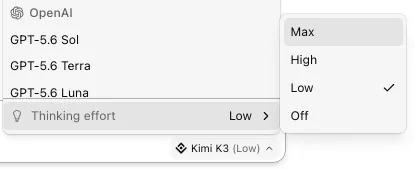
Models that support extended thinking let you control how much reasoning happens before a response. Open the model selector in the status bar and use the Thinking effort submenu at the bottom of the menu — the model selector trigger shows the current level in parentheses, e.g. “Opus 5 (Xhigh)“:
| Level | Behavior |
|---|---|
| Off | No extended thinking. Fastest responses. |
| Low | Light reasoning for straightforward tasks. |
| Medium | Balanced reasoning. Default when thinking is enabled. |
| High | Deep reasoning for complex problems. Slower but more thorough. |
Available levels depend on the model. Not all models support thinking — the submenu only appears when the selected model offers a choice of levels.
Web Search

Some models support web search. When enabled, the assistant can search the web to find current information, documentation, or answers to questions outside its training data.
Toggle web search on or off using the globe icon in the chat input area. If enabled, the model decides when to search based on your question.
Web search requires model support. The toggle only appears when the current model and provider support it. By default that means Posit AI Pass, Anthropic, supported Google-hosted Gemini 3 models, models served by the built-in OpenAI provider, and eligible Amazon Bedrock Mantle GPT models (see Providers for the model, region, and IAM requirements). A custom openai provider, or the built-in OpenAI provider pointed at a different base URL, can also offer it for a model that sets supportsWebSearch: true and uses the Responses API — see the custom provider settings.
Search results appear inline in the assistant’s response with citation links to the source URLs. For Bedrock Mantle models, the global webSearch.bedrock.externalWebAccess setting controls whether retrieval may fetch live external pages or stays within AWS’s web index and cache.
Text Selection Toolbar

Highlight any text in the chat area to reveal a floating toolbar with quick actions:
- Copy — Copies the selected text to your clipboard (see Copying from the chat).
- Quote in Chat — Inserts the selected text as a blockquote into the chat input, so you can reference or follow up on specific parts of a response.
- Add to Memory — Populates the chat input with a prompt to save the highlighted text to your project’s memory file. Review and edit the prompt before submitting.
The toolbar works on any text in the chat area — assistant responses, your own messages, tool output, and code blocks.
Copying from the chat
Copying a selection within the chat using Cmd+C / Ctrl+C, Edit > Copy, or the selection toolbar’s Copy button copies as rich markdown, retaining formatting and fenced code blocks.
The one exception is a selection contained within a single code block. This copies the code as raw text, ready to paste into an editor. The block’s own Copy button will also copy the whole block as raw text.
Tips
Posit Assistant shows helpful tips above the input area to surface features you might not know about. A tip always appears when you start a new conversation. After each assistant turn, there is a chance of showing another tip. Tips are platform-aware — some are specific to the web UI or the terminal UI.
In the web UI, dismiss a tip by clicking the × button. In all interfaces, tips clear automatically when the next turn starts.
To disable tips, set features.showTips to false in your config file.