Conversations
Posit Assistant keeps a full history of your conversations. You can switch between them, branch off in new directions, and export conversations in multiple formats.
Conversation History
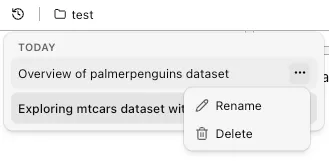
All conversations are saved automatically. Use the history panel to:
- Switch between past conversations
- Sort the list by when a conversation was created or by its most recent message, using the sort control under the search box. Your choice is saved as a setting and applies everywhere, including the terminal interface’s conversation picker (press
sthere to switch) - Rename a conversation to give it a meaningful title (otherwise one is generated automatically)
- Delete conversations you no longer need
Conversation tabs
Standalone, Desktop, RStudio, and the Positron sidebar can show conversation tabs with the global
features.conversationTabs setting ("off", "top", or "side"; default "top"). Changes apply
live to running sessions.
Each tab strip can keep up to 12 conversations open. Opening another replaces the currently focused tab but does not delete that conversation. Closing a tab closes only the view: saved history and background work remain available. Deleting a conversation from history is different—it removes that conversation from every open Assistant view.
In Positron, the setting applies to the sidebar only. An Assistant editor panel shows one conversation and never shows a tab strip. To open a conversation in its own editor tab, Cmd/Ctrl+click its row in the conversation history, or choose Open in new editor tab from the row menu. Positron then opens a new editor tab in the same editor group. You can split, move, and pin these tabs like any other editor tab. Each tab shows the name of its conversation.
If the conversation is already open in an editor tab, Positron shows that tab instead of opening a second one. New conversation in an editor panel replaces the conversation in that panel. To start a fresh conversation in another tab, use the New Posit Assistant Tab button in the editor title bar. Closing an editor tab closes only that view.
The Open Posit Assistant in Editor Panel command always opens another editor tab. Opening the sidebar conversation in an editor panel leaves the sidebar tab in place, which is useful for viewing the same running analysis beside other work.
Background notifications
Positron, Standalone, and Desktop can notify you when an unseen background conversation finishes or
needs input. Browser permission is requested only from the in-product Enable notifications
button. Choosing a browser or Positron notification opens the target conversation. Delivery is off by
default — turn it on with features.nativeNotifications (or assistant.nativeNotifications in
Positron). RStudio and TUI do not currently deliver native notifications.
Branching
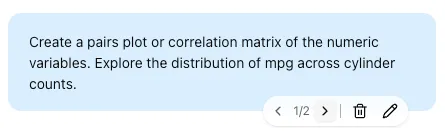
Conversations in Posit Assistant are stored as a tree, not a flat list. With Assistant’s built-in agent, editing a previous message creates a new branch from that point — your original conversation is preserved alongside the new direction.
With preview agent engines, editing and continuing from an earlier turn depend on the engine’s branching capabilities. ACP agents do not support branching at an earlier turn. You can still view saved branches; start a new engine session when continuation is unavailable.
This is useful when you want to:
- Try a different approach without losing your earlier work
- Ask the same question in a different way
- Explore multiple analysis directions from the same starting point
Navigate between branches using the conversation tree controls.
Import & Export
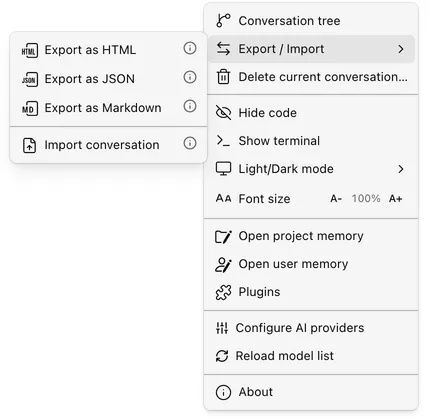
Export conversations from the Export / Import submenu of the overflow menu (gear icon). Available formats:
| Format | Description |
|---|---|
| Markdown | Plain text export of the conversation. |
| HTML | Standalone HTML file that can be viewed in any browser. |
| JSON | Full conversation tree structure for programmatic use. |
Conversations can also be imported from previously exported HTML or JSON files, using Import conversation in the same submenu.
Token Usage & Compaction
Long conversations accumulate tokens, which affects response quality and speed. With its built-in agent, Posit Assistant manages this automatically:
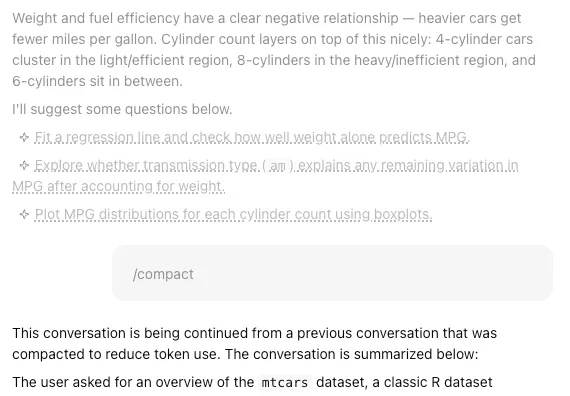
- Auto-compaction kicks in when the conversation approaches the model’s context limit. The assistant summarizes earlier messages to free up space.
- Manual compaction via
/compactlets you trigger this yourself. The summary preserves key context while hiding older messages from future requests. - Token counter — use
/contextto see current token usage.
Compacted messages are never deleted — they’re hidden from the model but preserved in the conversation tree. Previously compacted messages are shown in greyscale.
Agent engines manage their own compaction, and /compact is unavailable with them. See Context Management for engine token reporting and micro-compaction limits.